Skip to content
Menu
3Doodler
3D LESSONS 3D TUTORIALS 3D STENCILS DEALS
Search
3D LESSONS 3D TUTORIALS 3D STENCILS
SUPPORT
Discover

What is a 3D Pen?How to use a 3D penHow to draw with a 3D penDrawing 3D art with a 3D pen

Get Started

Start+FlowCreate+CandyChefPRO

Troubleshooting

Start+FlowCreate+CandyChefPRO

Manuals

Start+FlowCreate+CandyChefPRO

Resources

TutorialsStencilsLessons

Help

FAQsCompatibility

Schools

Learning PacksLessonsProfessional DevelopmentAccessibilityPurchase Orders

Blog
SHOP
USA UK International
DEALS

Search

Commonly searched

  • 3D Pens
  • 3D Pen Refills
  • 3Doodler Start+ Essentials 3D Printing Pen Set

    3Doodler Start+ Essentials 3D Printing Pen Set

  • 3Doodler Flow Essentials 3D Printing Pen Set

    3Doodler Flow Essentials 3D Printing Pen Set

  • 3Doodler Chef 3D Pen Set

    3Doodler Chef 3D Pen Set

Cart

3D Pen Support

Start+ 3D Pen

Start+

4
  • Start+ Getting Started Guide
  • Start+ Troubleshooting & FAQs
  • Start+ Manuals
  • Start+ Video Tips
Flow 3D Pen

Flow

3
  • Flow Getting Started Guide
  • Flow Troubleshooting Guide
  • Flow Manuals
PRO 3D Pen

PRO

3
  • PRO Getting Started Guide
  • PRO Troubleshooting Guide
  • PRO Manuals
Chef 3D Pen

Chef

3
  • Chef Troubleshooting Guide
  • Chef Getting Started Guide
  • Chef Manuals

Candy

3
  • Candy Getting Started Guide
  • Candy Troubleshooting Guide
  • Candy Manuals

Discontinued Pens

6
  • PRO+
    • PRO+ Troubleshooting Guide
    • PRO+ Manuals
    • PRO+ Getting Started Guide
  • Create+
    • Create+ Getting Started Guide
    • Create+ Troubleshooting Guide
    • Create/Create+ Manuals
View Categories
  • Home
  • Support
  • Chef
  • Chef Getting Started Guide

Chef Getting Started Guide

1 min read

Getting Started with your 3Doodler Chef

Just getting started with your 3Doodler Chef? Designed for effortless handling and precise control, this pen puts the power of confectionery creation right in your hands. Let’s walk through the basics so you can start crafting delicious designs immediately.

Basics
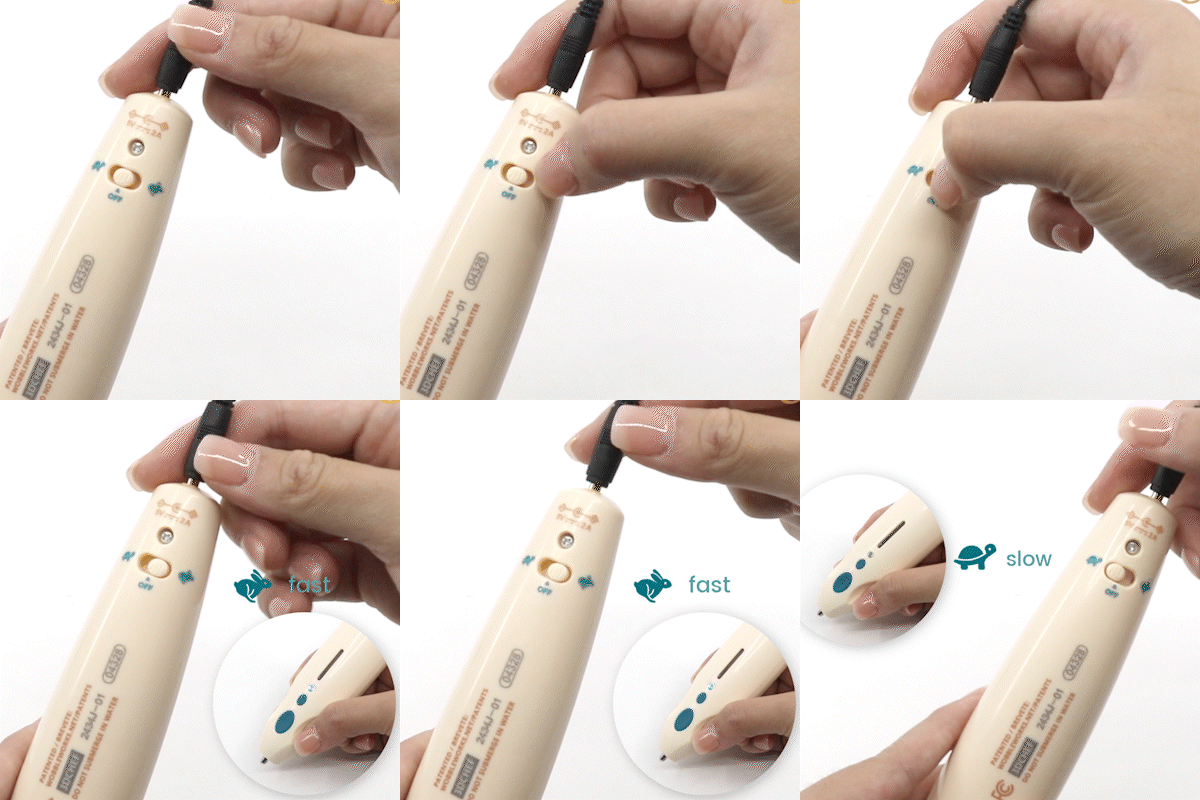
Set the Speed

Set the Speed

  1. Plug in your 3Doodler Chef and power it on.
  2. Tap the Forward Button to switch between speed modes.
  3. While the pen heats up, the light glows Red. Once it switches to Green or Blue, you’re ready to go.

  • Green Light (Turtle) – Slow, detailed mode for intricate candy designs
  • Blue Light (Rabbit) – Fast, bold mode for filling larger areas
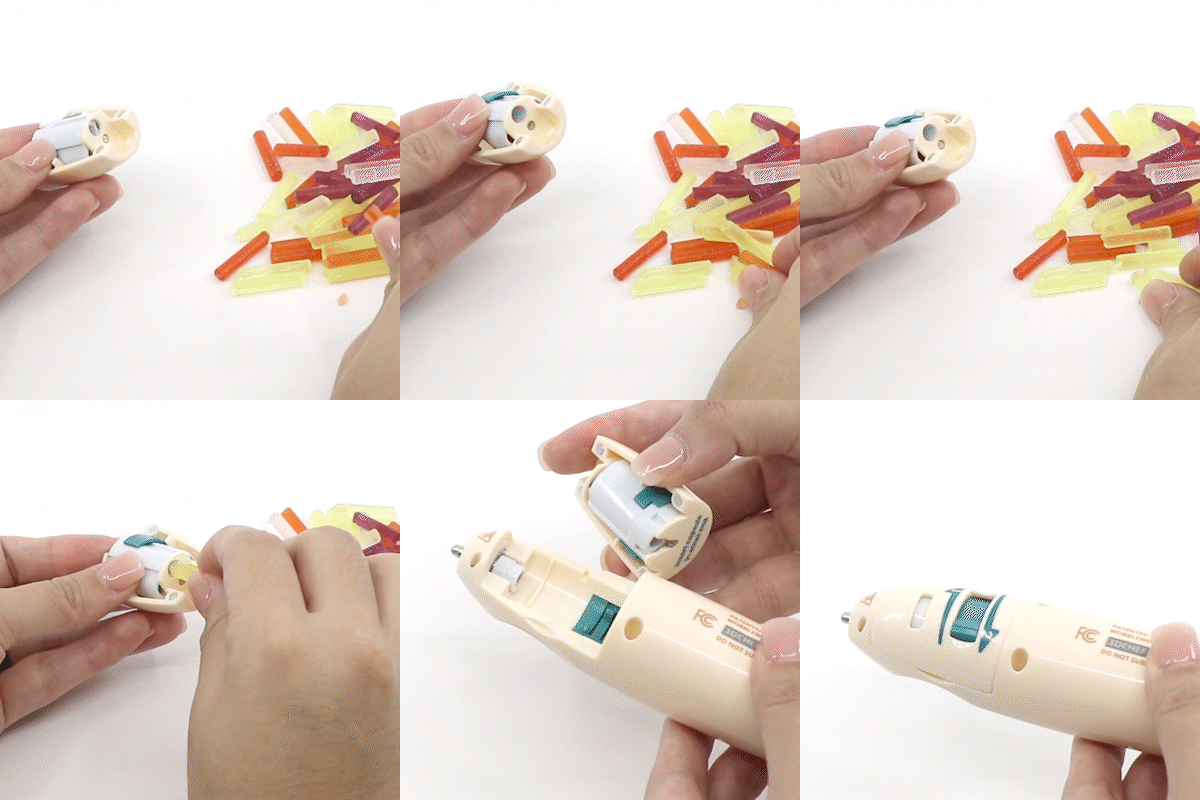
Load a Candy Capsule

Load a Candy Capsule

  1. Open the cartridge slot and line up the capsule arrow with the guide.
  2. Push the capsule in until it clicks into place and engages the pushrod.
  3. Screw the nozzle snugly over the capsule opening.
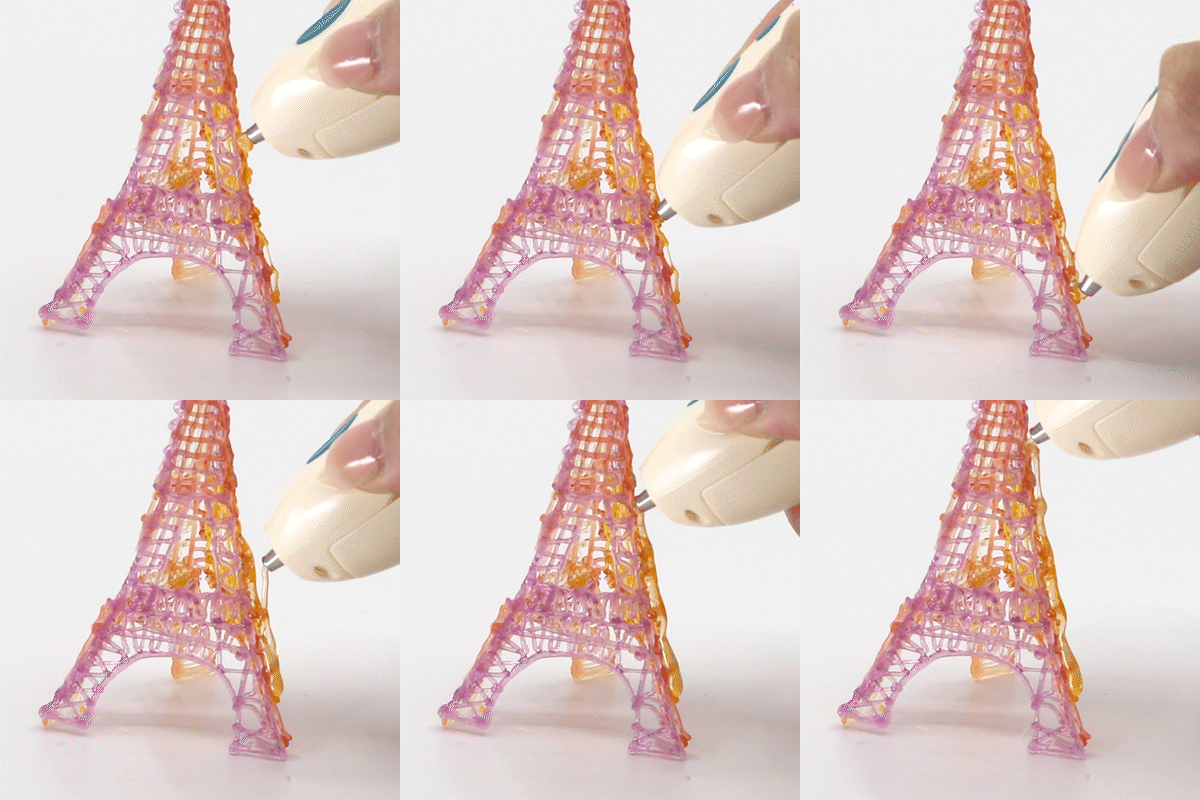
Start Doodling

Start Doodling

  • Press Forward once to begin extruding candy.
  • Hold Forward for continuous flow, or tap to start and stop.
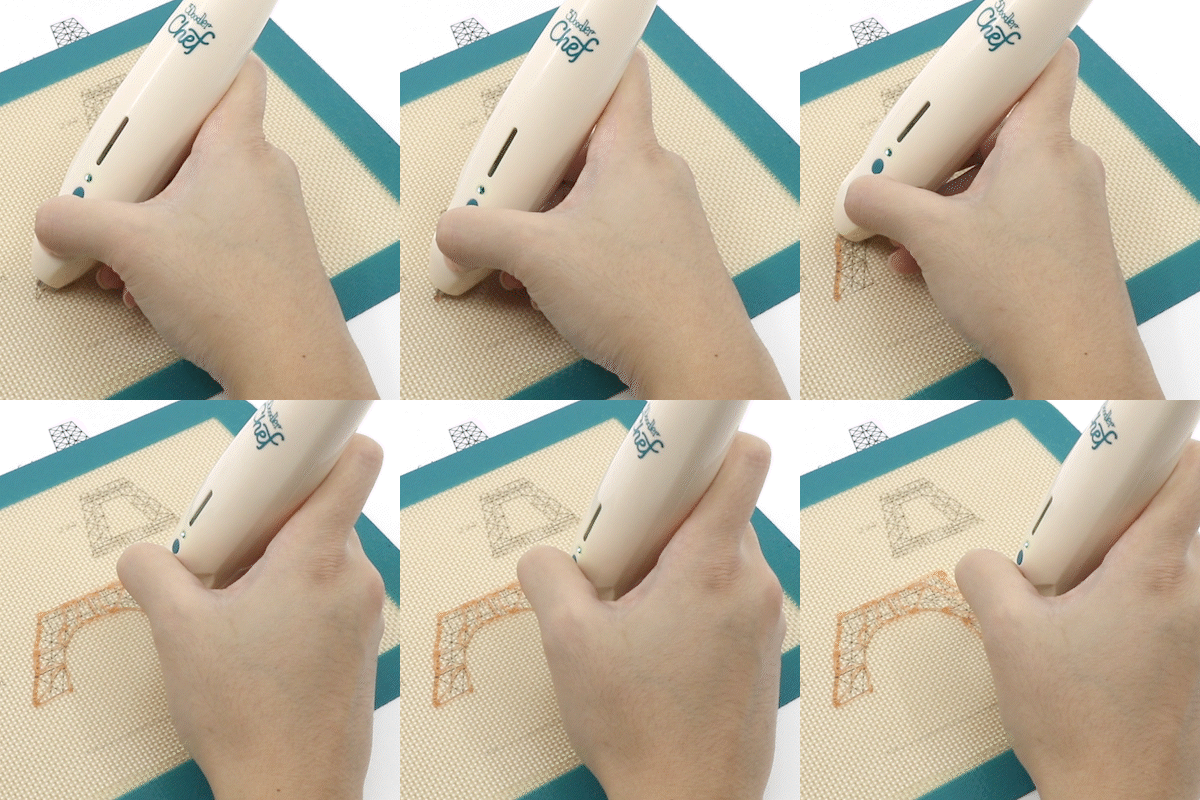
  • Draw on your silicone mat, decorate cookies, or build free-standing candy shapes.

The Pen

The Buttons

  • Forward Button: Initiates and pauses candy extrusion (tap or hold).
  • Reverse Button: Ejects an empty capsule and prepares for the next one.

Indicator Lights

  • Red: Pen is warming up.
  • Green: Slow (detailed) mode is active.
  • Blue: Fast (fill) mode is active.
  • Flashing Green / Blue: Reverse mode (ready to swap capsules).

Operation

Feeding Capsules

  • Insert the capsule and push until the pushrod snaps into position.
  • When a capsule runs out, the pushrod pops forward automatically and clicks when ready for the next one.

Anchoring Your Candy

  • Press the nozzle firmly against your silicone mat or baked goods.
  • Let enough candy extrude so it sticks before lifting the tip.

Joining Candy Pieces

  • Extrude a small amount of candy at the joint and press the nozzle to both surfaces until they bond.

Finishing and Tips

Reverse and Swap Capsules

  1. The pushrod clicks and the indicator flashes when a capsule empties.
  2. Press Reverse to eject the used capsule.
  3. Insert a new capsule and push until it clicks into place.
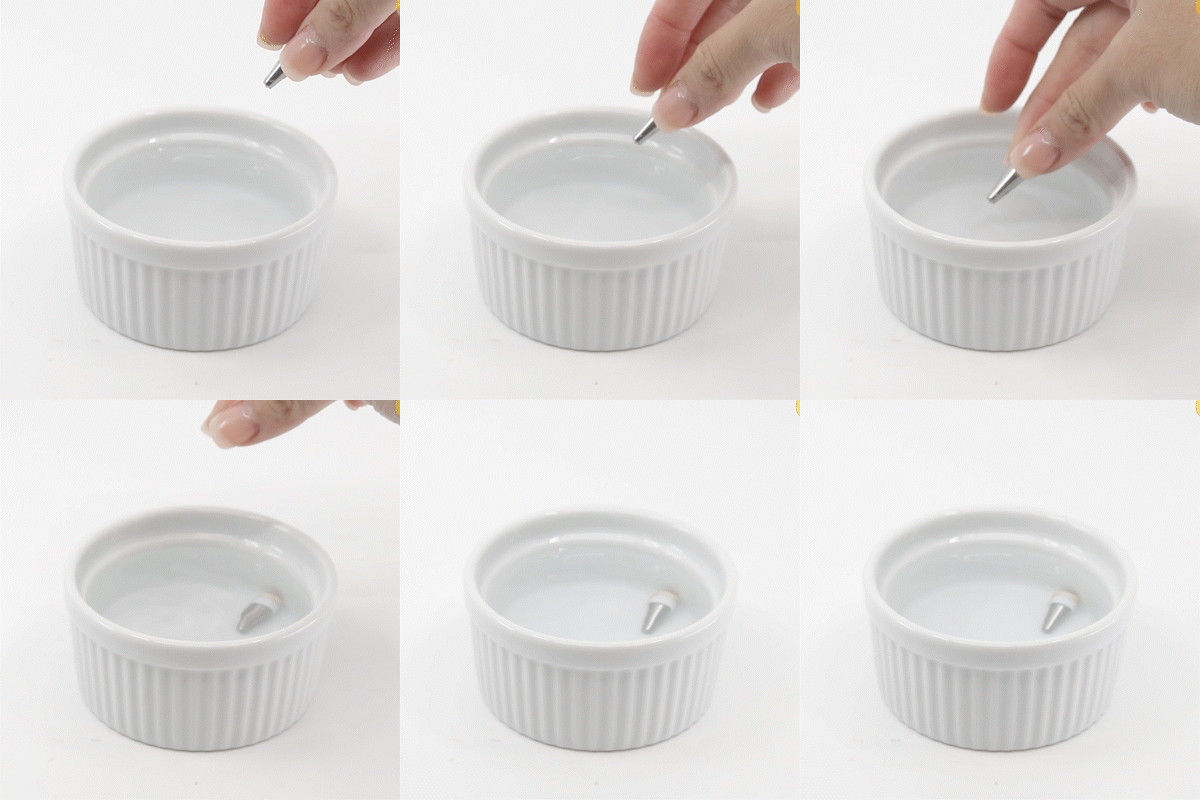
Clean the Nozzle

Clean the Nozzle

  • Allow the pen to cool, then unscrew the nozzle by hand.
  • Soak in warm water and clean using the Cleaning Brush.
  • Dry completely before reattaching.

Troubleshooting

Clogged Nozzle

  1. Power on and wait for Green or Blue.
  2. Carefully remove the nozzle.
  3. Rinse with warm water and scrub with the Cleaning Brush.
  4. Dry completely, reattach, and heat again.

Pushrod Won’t Feed

  • Remove and reseat the capsule, pushing firmly until it locks.
  • Store capsules in a cool, dry place.

Accessories
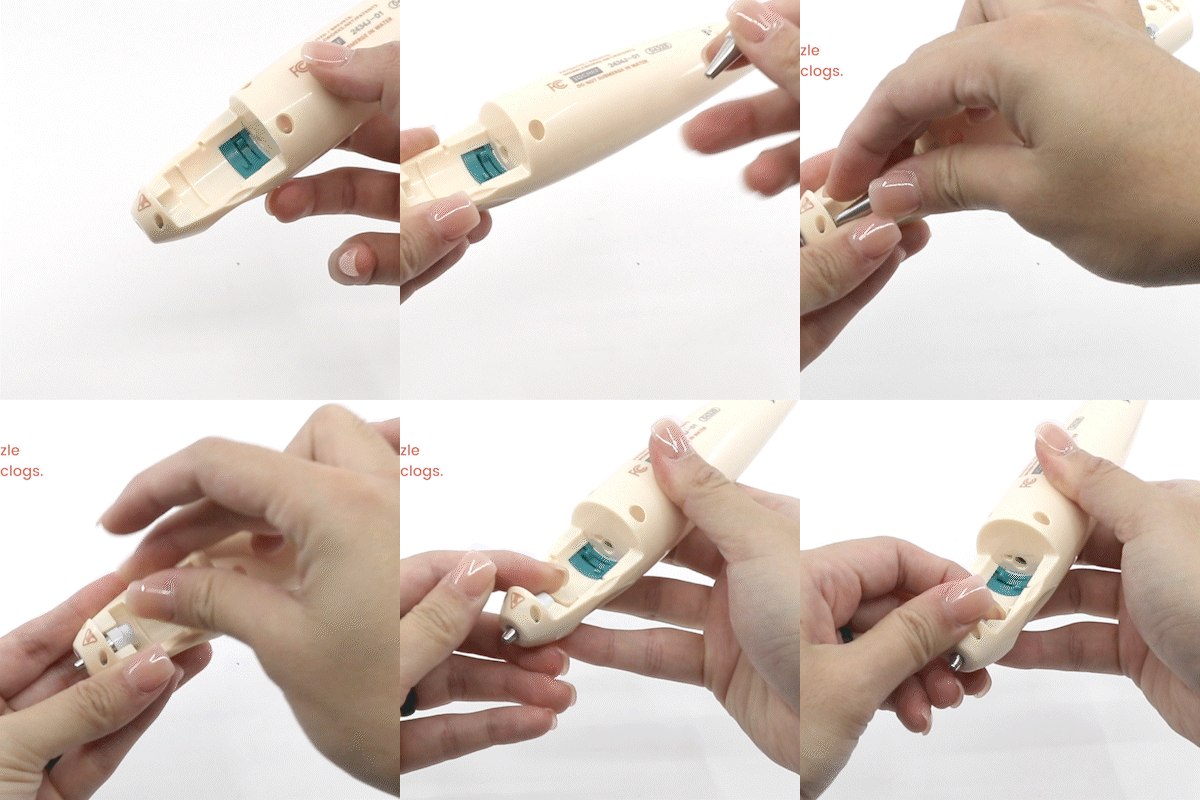
Switching Nozzles

Switching Nozzles

  1. Unplug the pen and let it cool completely.
  2. Unscrew the current nozzle by hand.
  3. Screw on a fresh nozzle.
  4. Power up and heat before use.

Using the Silicone Mat

Using the Silicone Mat

  • Place the mat on a flat surface.
  • Slip a stencil underneath for guided designs.
  • Peel hardened candy off and reuse the mat.

Updated on March 11, 2026

What are your Feelings

  • Happy
  • Normal
  • Sad

Share This Article :

  • Facebook
  • X
  • LinkedIn
  • Pinterest
Chef Troubleshooting GuideChef Manuals
Table of Contents
  • Getting Started with your 3Doodler Chef
    • Basics
      • Set the Speed
      • Load a Candy Capsule
      • Start Doodling
    • The Pen
      • The Buttons
      • Indicator Lights
    • Operation
      • Feeding Capsules
      • Anchoring Your Candy
      • Joining Candy Pieces
    • Finishing and Tips
      • Reverse and Swap Capsules
      • Clean the Nozzle
    • Troubleshooting
      • Clogged Nozzle
      • Pushrod Won't Feed
    • Accessories
      • Switching Nozzles
      • Using the Silicone Mat
Subscribe For Special Offers & Inspiration
By subscribing, you agree to receive emails from us. Please find our privacy policy here.
Help
  • FAQ's
  • Troubleshooting
  • Warranty
  • Contact Us
Legal
  • Terms
  • Privacy Policy
  • Cookie Policy
  • Patents
  • Returns
  • Patents
  • All Other
Company
  • About
  • 3Doodler EDU
  • 3Doodler App
  • Blog
  • Press
Learn
  • Getting Started
  • Tutorials
  • Stencils
  • Videos
  • Lesson Plans
Payment methods
  • American Express
  • Apple Pay
  • Diners Club
  • Discover
  • Google Pay
  • Mastercard
  • PayPal
  • Shop Pay
  • Visa
  • Facebook
  • Instagram
  • LinkedIn
  • Twitter
  • YouTube
© 2026 3Doodler
Back to top