Skip to content
Menu
3Doodler
3D LESSONS 3D TUTORIALS 3D STENCILS DEALS
Search
3D LESSONS 3D TUTORIALS 3D STENCILS
SUPPORT
Discover

What is a 3D Pen?How to use a 3D penHow to draw with a 3D penDrawing 3D art with a 3D pen

Get Started

Start+FlowCreate+CandyChefPRO

Troubleshooting

Start+FlowCreate+CandyChefPRO

Manuals

Start+FlowCreate+CandyChefPRO

Resources

TutorialsStencilsLessons

Help

FAQsCompatibility

Schools

Learning PacksLessonsProfessional DevelopmentAccessibilityPurchase Orders

Blog
SHOP
USA UK International
DEALS

Search

Commonly searched

  • 3D Pens
  • 3D Pen Refills
  • 3Doodler Start+ Essentials 3D Printing Pen Set

    3Doodler Start+ Essentials 3D Printing Pen Set

  • 3Doodler Flow Essentials 3D Printing Pen Set

    3Doodler Flow Essentials 3D Printing Pen Set

  • 3Doodler Chef 3D Pen Set

    3Doodler Chef 3D Pen Set

Cart

3D Pen Support

Start+ 3D Pen

Start+

4
  • Start+ Getting Started Guide
  • Start+ Troubleshooting & FAQs
  • Start+ Manuals
  • Start+ Video Tips
Flow 3D Pen

Flow

3
  • Flow Getting Started Guide
  • Flow Troubleshooting Guide
  • Flow Manuals
PRO 3D Pen

PRO

3
  • PRO Getting Started Guide
  • PRO Troubleshooting Guide
  • PRO Manuals
Chef 3D Pen

Chef

3
  • Chef Troubleshooting Guide
  • Chef Getting Started Guide
  • Chef Manuals

Candy

3
  • Candy Getting Started Guide
  • Candy Troubleshooting Guide
  • Candy Manuals

Discontinued Pens

6
  • PRO+
    • PRO+ Troubleshooting Guide
    • PRO+ Manuals
    • PRO+ Getting Started Guide
  • Create+
    • Create+ Getting Started Guide
    • Create+ Troubleshooting Guide
    • Create/Create+ Manuals
View Categories
  • Home
  • Support
  • Start+
  • Start+ Troubleshooting & FAQs

Start+ Troubleshooting & FAQs

5 min read

3Doodler Start+ Troubleshooting Guide & FAQs

Select your Start+ 3D Pen

Tap the image that matches your pen to view the correct Getting Started guide.
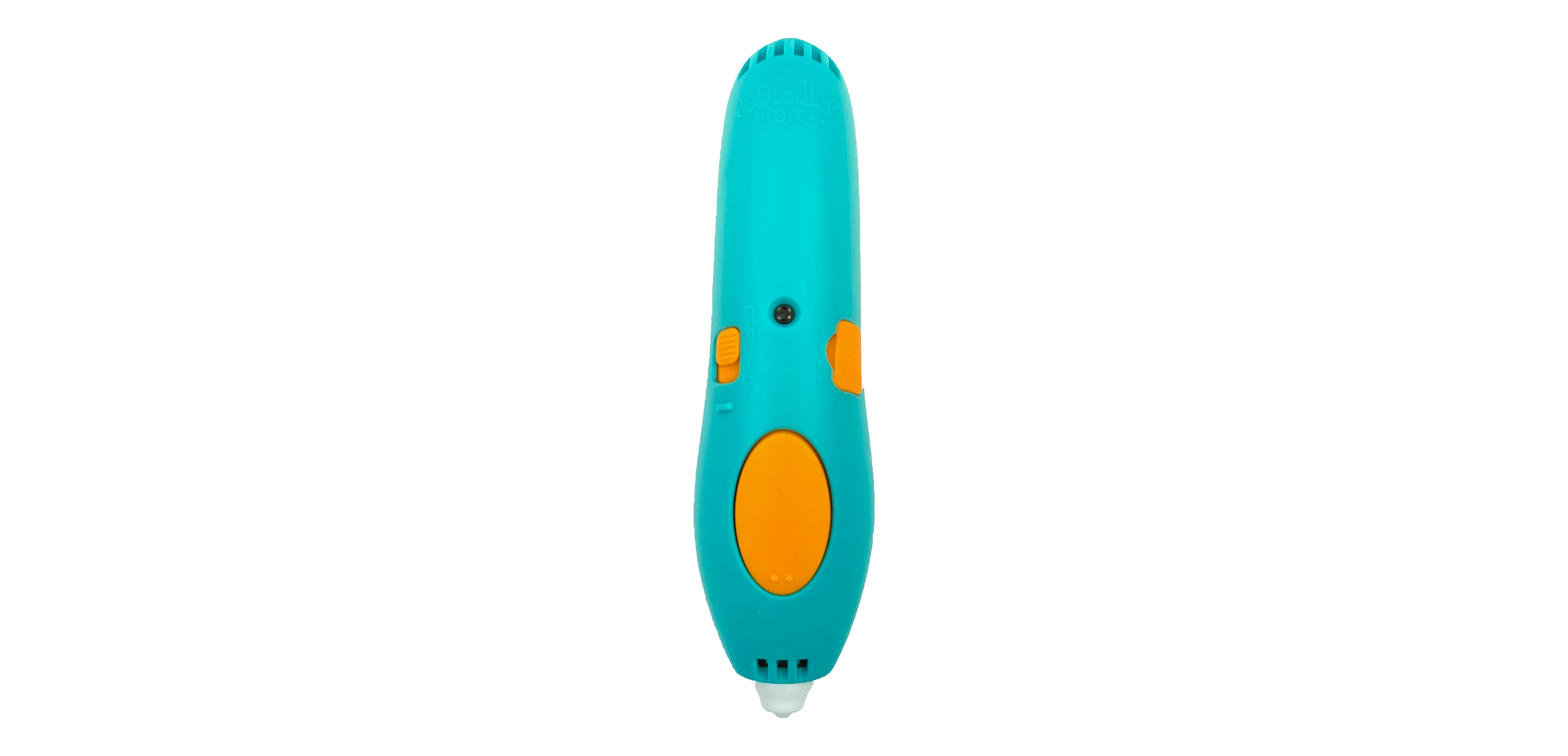
Start+ pen with charging port on the side
Charging port on the side

Start+ Troubleshooting Guide

Start+ FAQs (charging port on the side)

Why isn’t my Start+ pen charging?

+
Ensure the pen is switched OFF while charging. During charging, the LED will flash orange. When the LED becomes solid orange, charging is complete.

We see issues like this occasionally when the power supply is not providing enough amps to the pen. This can occur if the USB cord is plugged into a device instead of directly into the wall.

Be sure to note that 3Doodler pens should not be used with Smart Chargers or Smart power supplies. Regular, low-watt chargers are recommended.

How do I unclog/unjam my Start+ Pen?

+

Turn the pen on and let it warm up. Once it’s ready, insert a new strand into the pen, or use the strand already there, and while using firm pressure, push and twist the filament 90 degrees. Often, the firm pressure and twisting can dislodge any filament that might be stuck in the gears.

If that does not unclog the jam, please contact Customer Service at help@3doodler.com

Charging port on the top

Start+ Troubleshooting Guide

Start+ FAQs (charging port on the top)

Why isn’t my Start+ pen charging?

+

We see issues like this occasionally when the power supply is not providing enough amps to the pen. This can occur if the USB cord is plugged into a device instead of directly into the wall.

Be sure to note that 3Doodler pens should not be used with Smart Chargers or Smart power supplies. Regular, low-watt chargers are recommended.

This pen can be used plugged in or not plugged in. Refer to the LED chart at the bottom of the Troubleshooting Guide.

How do I unclog/unjam my Start+ Pen?

+

With a small screwdriver, you can safely remove the gearbox cover.
Turn the pen on and wait for it to warm up.

Try reverse:
In reverse, if any filament becomes visible, you can use tweezers to gently pull it out. Be sure to remove all the wispy ends so they do not get tangled in the gears.

Try forward:
While the pen is trying to extrude, insert a new strand into the gearbox and use force to push it through.


Start+ Common FAQs

What type of Filament can be used with the 3Doodler Start+ 3D pen?

−

The Start+ 3D pen is designed to work with our 3Doodler Start+ Eco-Filament. Our Start+ Eco-Filament was developed specifically for this pen so that you can doodle at lower, safe temperatures.

The use of third-party filament will void any active warranty.

Why is the light on my 3Doodler Start+ blinking/flashing red?

+

If you are experiencing a flashing red light with your 3Doodler Start+, please contact our Customer Service team for assistance.

Why is the light on my 3Doodler Start+ always red?

+

A solid red LED indicates the pen is on and warming up. The LED will change to solid green or solid blue once it’s ready for use.

After several minutes of being switched ON without engaging the motor, your pen will go into “standby mode.” The heat will cut off, and the LED will stay red until the device is made active again.

Reactivate the device by single-clicking the button or by turning the pen OFF and then ON again. If your LED remains red after this, please contact our Customer Service team.

The filament is moving slowly. What do I do?

+

Occasionally, when you get to the end of one strand, extrusion slows noticeably. Insert a new strand into the back of your 3Doodler pen.

If it still extrudes very slowly (or not at all), try giving the new filament a little nudge downward. This should resolve the issue.

Why is my 3Doodler Start+ having difficulty feeding or gripping a new strand?

+

Jams can occur occasionally and may have different causes.

While your pen is feeding forward, firmly push the filament into the feeding port. If this does not resolve the issue, please reach out to us for further assistance.

Why is my Start+ Pen jammed/clogged?

+

Jams can occur occasionally and may have different causes. Most often, jams occur from reusing filament without trimming the ends.

Here are some tips to help you avoid jams.
Check your filament: Make sure it’s bendy and flexible. Filament that is brittle or breaks easily should be discarded.

15-second rule: Wait 15 seconds after extrusion stops before reversing out a strand.

Trim those ends: Always trim off the melted end of filament before reinserting it into the pen.

Doodle it out: If you can’t reverse a strand out, or you will be putting your doodler away for a bit, always extrude all remaining filament inside the pen.

Why does my Start+ pen not seem to be heating up?

+

Begin by fully charging your 3Doodler Start+ for 30 minutes to 1 hour.

Once charged, turn the pen on. The light should change from Solid Red to Solid Green. This typically takes about 30 seconds but may take up to two minutes.

If the pen remains idle for too long, it may cool down as a safety feature and enter standby mode. If the LED has not turned Solid Green after three minutes, please email our Customer Service team.

Updated on April 2, 2026

What are your Feelings

  • Happy
  • Normal
  • Sad

Share This Article :

  • Facebook
  • X
  • LinkedIn
  • Pinterest
Start+ Getting Started GuideStart+ Manuals
Table of Contents
  • 3Doodler Start+ Troubleshooting Guide & FAQs
    • Select your Start+ 3D Pen
    • Start+ Troubleshooting Guide
    • Start+ FAQs (charging port on the side)
      • Why isn’t my Start+ pen charging?
      • How do I unclog/unjam my Start+ Pen?
    • Start+ Troubleshooting Guide
    • Start+ FAQs (charging port on the top)
      • Why isn’t my Start+ pen charging?
      • How do I unclog/unjam my Start+ Pen?
    • Start+ Common FAQs
      • What type of Filament can be used with the 3Doodler Start+ 3D pen?
      • Why is the light on my 3Doodler Start+ blinking/flashing red?
      • Why is the light on my 3Doodler Start+ always red?
      • The filament is moving slowly. What do I do?
      • Why is my 3Doodler Start+ having difficulty feeding or gripping a new strand?
      • Why is my Start+ Pen jammed/clogged?
      • Why does my Start+ pen not seem to be heating up?
Subscribe For Special Offers & Inspiration
By subscribing, you agree to receive emails from us. Please find our privacy policy here.
Help
  • FAQ's
  • Troubleshooting
  • Warranty
  • Contact Us
Legal
  • Terms
  • Privacy Policy
  • Cookie Policy
  • Patents
  • Returns
  • Patents
  • All Other
Company
  • About
  • 3Doodler EDU
  • 3Doodler App
  • Blog
  • Press
Learn
  • Getting Started
  • Tutorials
  • Stencils
  • Videos
  • Lesson Plans
Payment methods
  • American Express
  • Apple Pay
  • Diners Club
  • Discover
  • Google Pay
  • Mastercard
  • PayPal
  • Shop Pay
  • Visa
  • Facebook
  • Instagram
  • LinkedIn
  • Twitter
  • YouTube
© 2026 3Doodler
Back to top