

Getting Started with your Start+ Pen
Select your Start+ pen
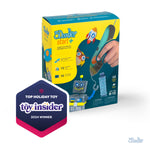
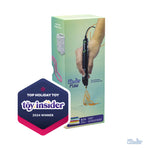
Tap the image that matches your pen to view the correct Getting Started guide.
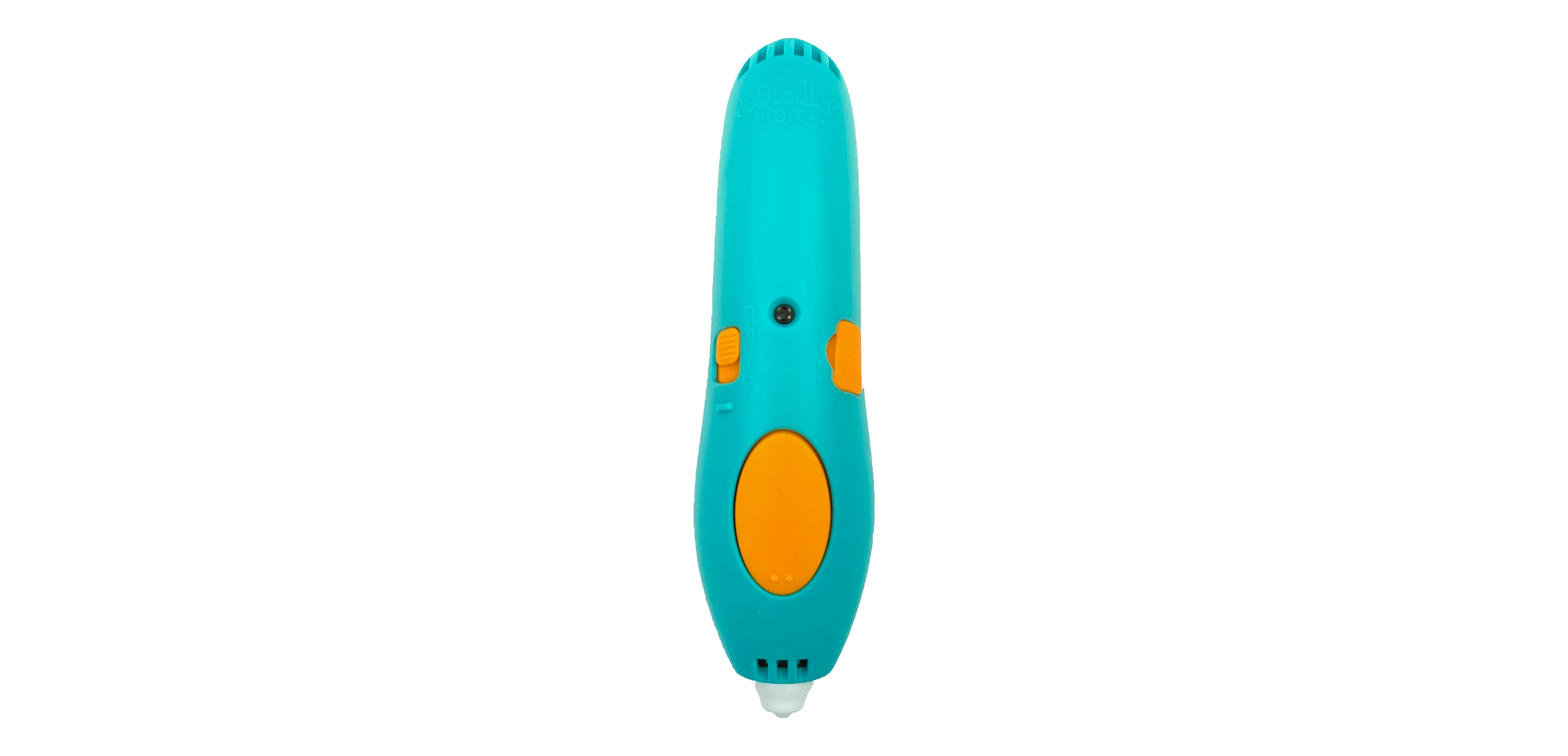
Charging port on the side
Getting Started with your 3Doodler Start+
Not sure where to begin with your new 3Doodler Start+ pen? You’ve come to the right place! Let’s get started with a few of the basics. We’ll help get you Doodling like a pro in no time.
Basics

Micro USB Port
Plug in and recharge quickly and easily.

On / Off Switch
Slide this switch to turn it on. Allow 30 seconds for the pen to warm up. Out of power? Charge it up!

Insert a Strand
Click to start, then insert the strand until you feel it grip.
The Buttons

Click to Start, Click to Stop
One single click is all it takes to get your 3Doodler Start+ feeding. When you need to stop, one click is all it takes to stop the flow of filament. When inserting a fresh strand, it can take 10–15 seconds to extrude from the nozzle.
Jammed Filament
First try gently pushing your filament into the feed port to ensure it engages with the gears and gets gripped properly. If the strand inside the pen is not long enough to grip, use another filament strand to gently push the first strand down into the gear system.
Still Struggling?
Don’t worry, our support team is here to help. Please reach out to us here and let us know what’s going on.
LED Status Lights

The Three Colors
Red means the 3Doodler is warming up, green indicates it’s ready to Doodle, and orange signals the pen is charging.
Doodling Tips

Extruding Filament
Our Eco-Filament extrudes from the nozzle and hardens in a few seconds, giving you time to shape your Doodles to perfection.

Anchoring
If the filament won’t stick to paper, push the nozzle firmly onto the paper, let the filament extrude for a couple of seconds, then lift the nozzle. The downward pressure helps the filament stick. We call this anchoring.
Tips

Keep Your Filament Clean
Use clippers or scissors to snip melted filament ends to avoid unnecessary jams.

Welding Filament
While extruding, touch the tip of the pen to each piece you wish to join. After welding, you have about 5 seconds to mold the filament before it hardens.
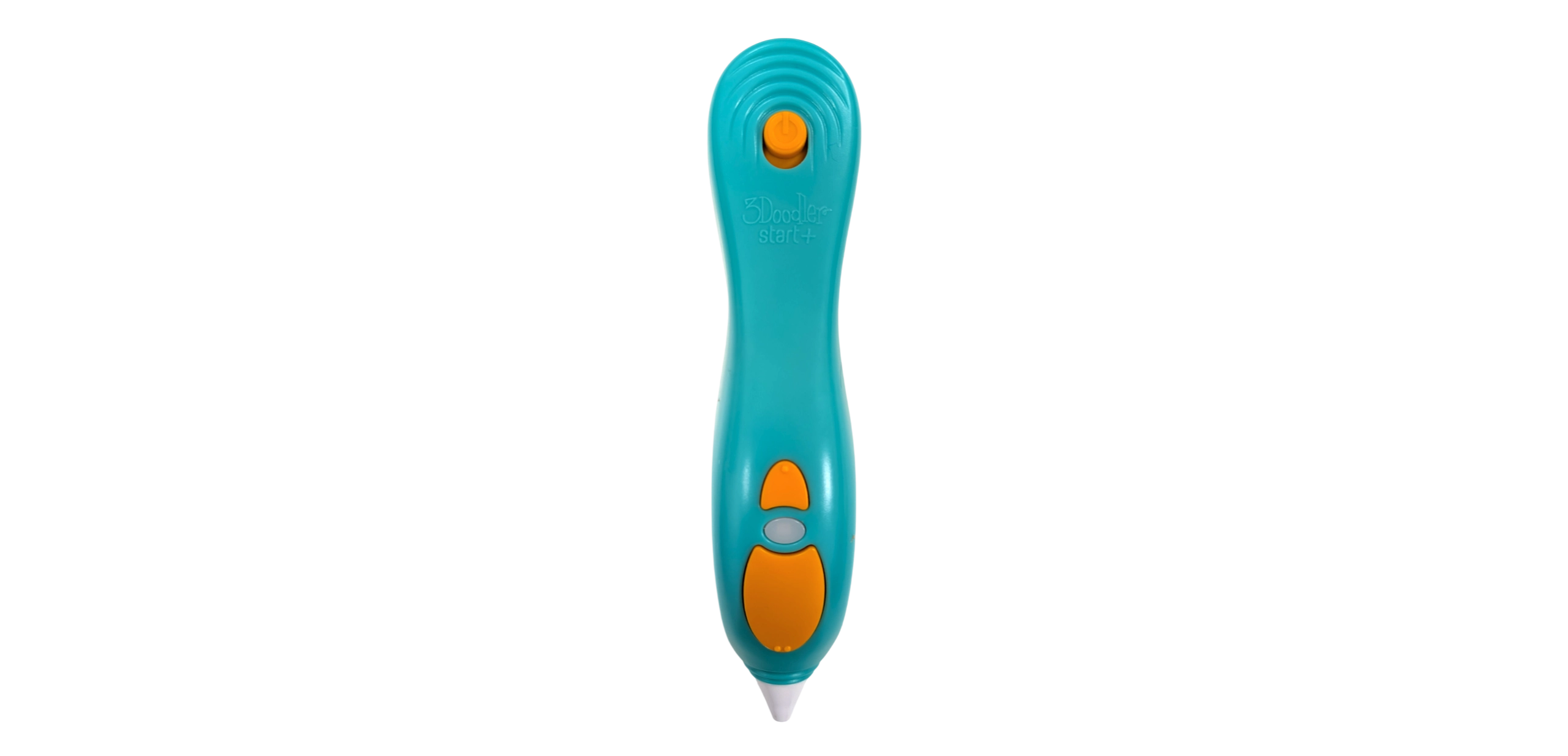
Updated front tip & USB-C
Getting Started with your 3Doodler Start+
Not sure where to begin with your new 3Doodler Start+ pen? You’ve come to the right place! Let’s get started with a few of the basics. We’ll help get you Doodling like a pro in no time.
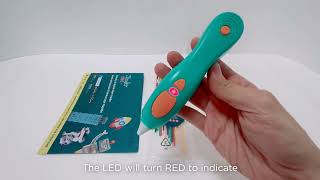
Basics
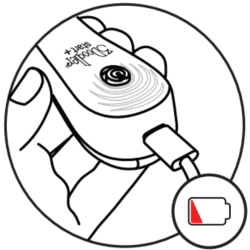
USB-C Port
Plug in and recharge quickly and easily.
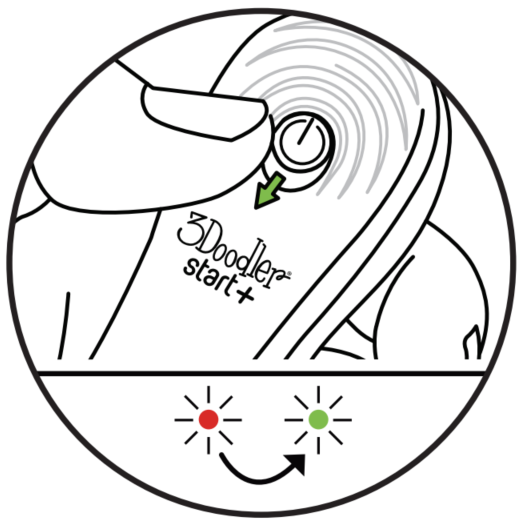
On / Off Switch
Slide this switch to turn it on. Allow 30 seconds for the pen to warm up. Out of power? Charge it up!
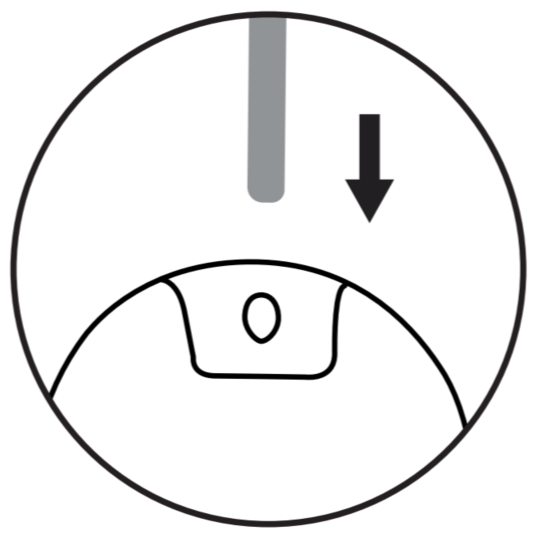
Insert a Strand
Click to start, then insert the strand until you feel it grip.
The Buttons
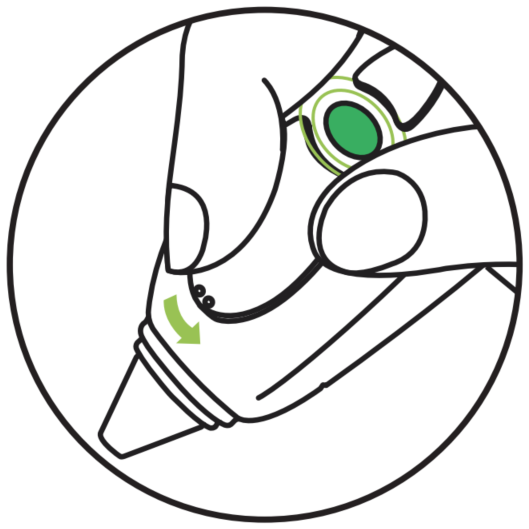
Click to Start, Click to Stop
Click the forward button once to start your pen — the LED will slowly flash green. Click again to stop, and the LED will turn solid green. When inserting a fresh strand, it can take a few seconds to extrude from the nozzle.
Jammed Filament
First try gently pushing your filament into the feed port to ensure it engages with the gears and gets gripped properly. If the strand inside the pen is not long enough to grip or push by hand, use another filament strand to gently push the first strand down and into the gear system.
Still Struggling?
Don’t worry, our support team is here to ensure you’re Doodling as soon as possible. Please reach out to us here and let us know what’s going on.
LED Status Lights
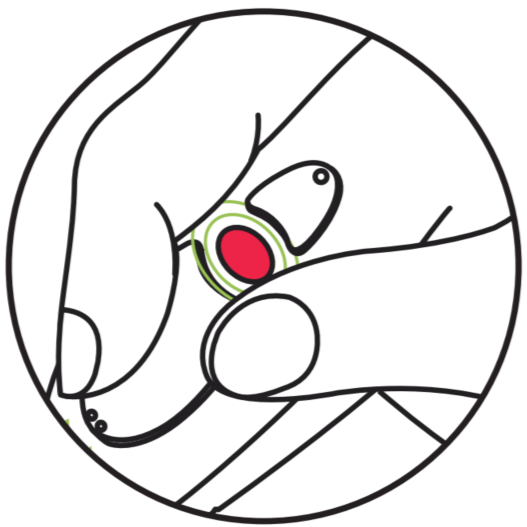
The Three Colors
Red means the 3Doodler is warming up, green indicates it’s ready to Doodle, and orange signals the pen is charging.
Doodling Tips
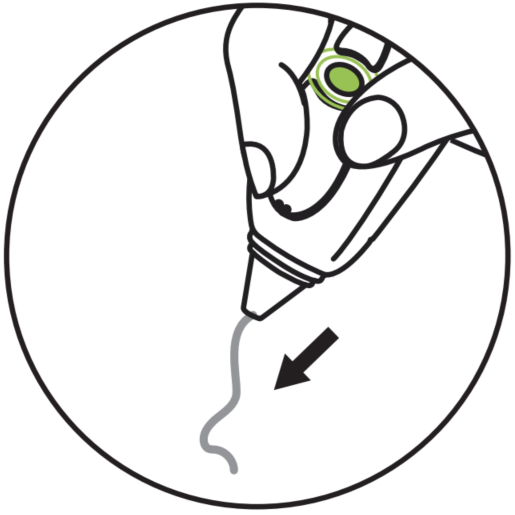
Extruding Filament
Our Eco-Filament extrudes from the nozzle and hardens in a few seconds, giving you time to shape your Doodles to perfection.
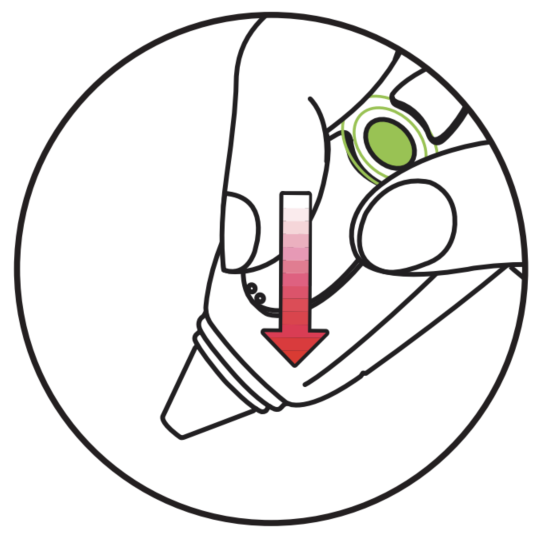
Anchoring
If the filament won’t stick to paper or goes off in random directions, push the nozzle firmly onto the paper and allow the filament to extrude for a couple of seconds, then lift the nozzle. We call this anchoring.
Tips
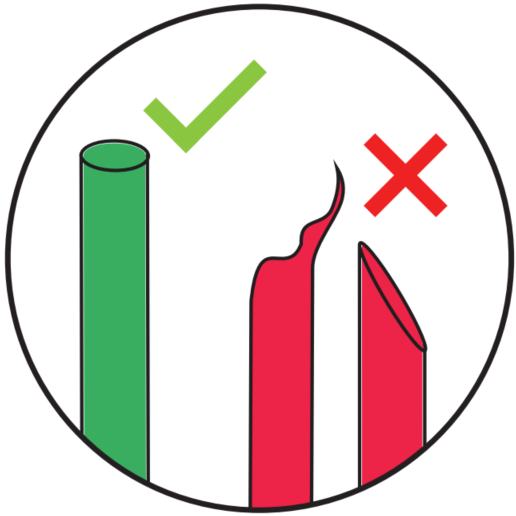
Snipping Ends
Ensure the filament is cut correctly before inserting it into the pen.
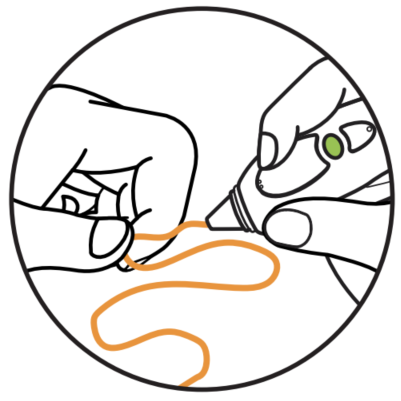
Shape Your Doodles
Wait a few seconds after the filament comes out of the nozzle, then mold and shape your Doodles before they harden.
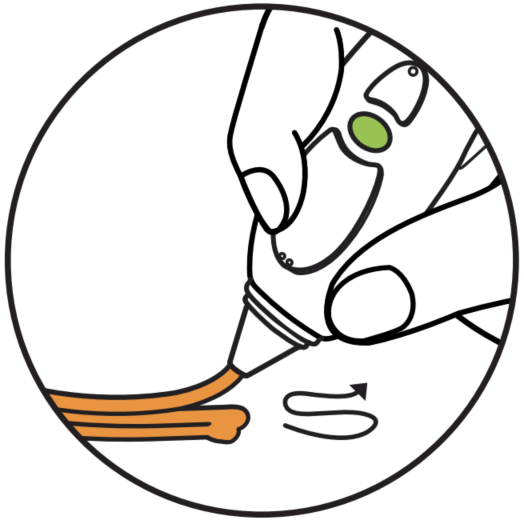
Try Layering
Want to strengthen your Doodles? Try layering. The more filament you add, the stronger your Doodles will be.


